> For the complete documentation index, see [llms.txt](https://help.aristotlemetadata.com/llms.txt). Markdown versions of documentation pages are available by appending `.md` to page URLs; this page is available as [Markdown](https://help.aristotlemetadata.com/data-inventories/creating-and-editing-a-data-inventory.md).
# Creating and editing a data inventory
{% hint style="info" %}
Data inventories can only be created and edited at a:
* Registry-wide level by a registry Administrator
* Steward-Organisation-specific level by a Stewardship Organisation Administrator.
{% endhint %}
While creating or editing a data inventory, Administrators can specify filters to apply to inventory content, data set attributes to display when the inventory is viewed, default viewing modes, and more.
## How to create or edit a data inventory
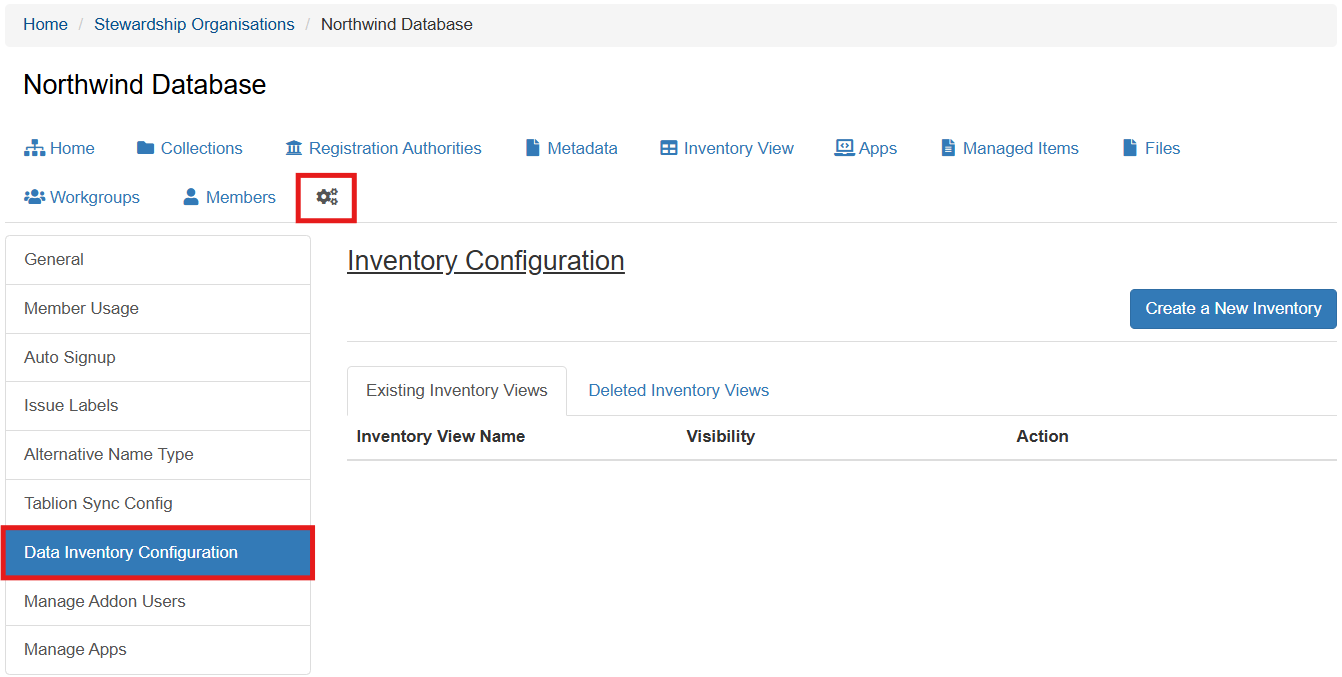
1. **If you wish to create a registry-wide data inventory**, select 'Aristotle Cloud Dashboard' from the dashboard side panel. **If you wish to create a Stewardship-Organisation-specific data inventory**, navigate to the desired Stewardship Organisation and select 'Data Inventory Configuration' from its settings tab.
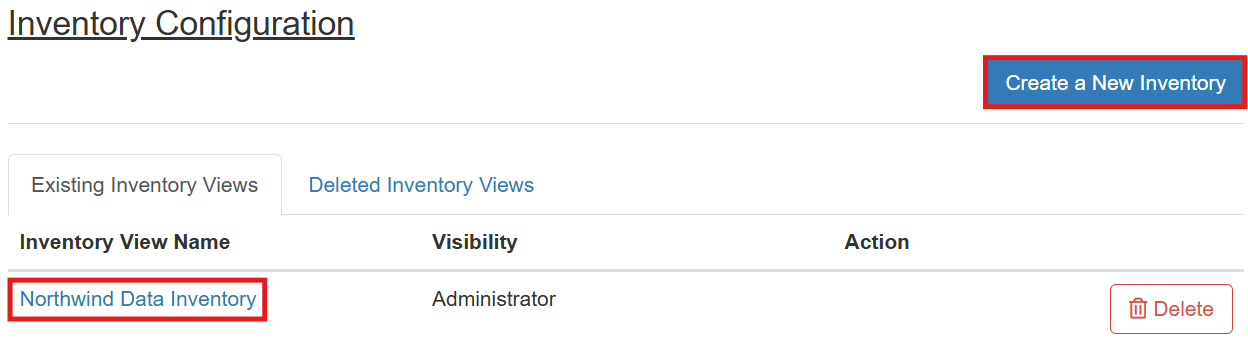
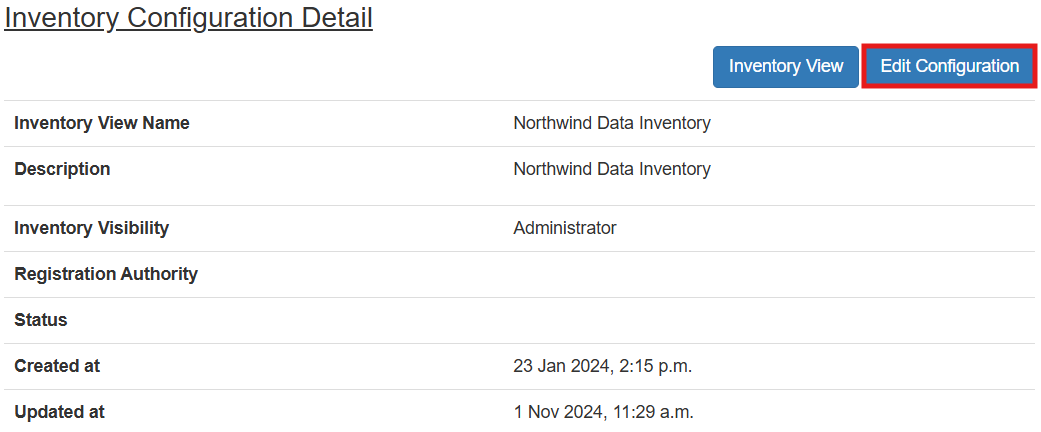
2. **If you wish to create a new data inventory**, select 'Create a New Inventory'. **If you wish to edit an existing inventory**, select the name of the inventory from the 'Inventory Configuration' list, then elect 'Edit Configuration'.
3. Populate the 'Inventory View Name' and 'Description' fields as desired. These will inform the name and contextual description of the inventory.
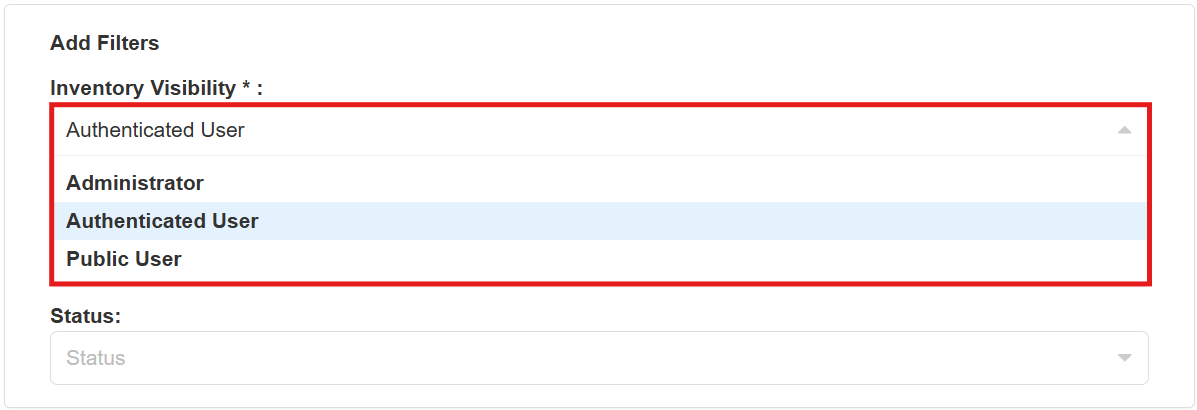
4. Select the user type you would like this inventory to be visible to using the 'Inventory Visibility' dropdown.
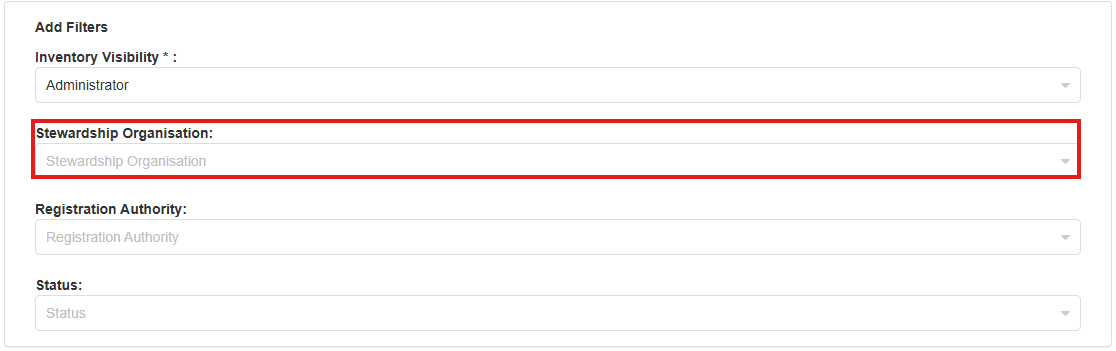
**Note: If you are creating/editing a registry-wide inventory but wish to create a Stewardship-Organisation-specific inventory**, you can also select a Stewardship Organisation at this stage (below). This will result in the same data inventory as if you had created/edited the inventory via the relevant Stewardship Organisation.
5. **If you would like this inventory to only contain data sets endorsed by a specific registration authority**, select the desired registration authority from the 'Registration Authority' dropdown.
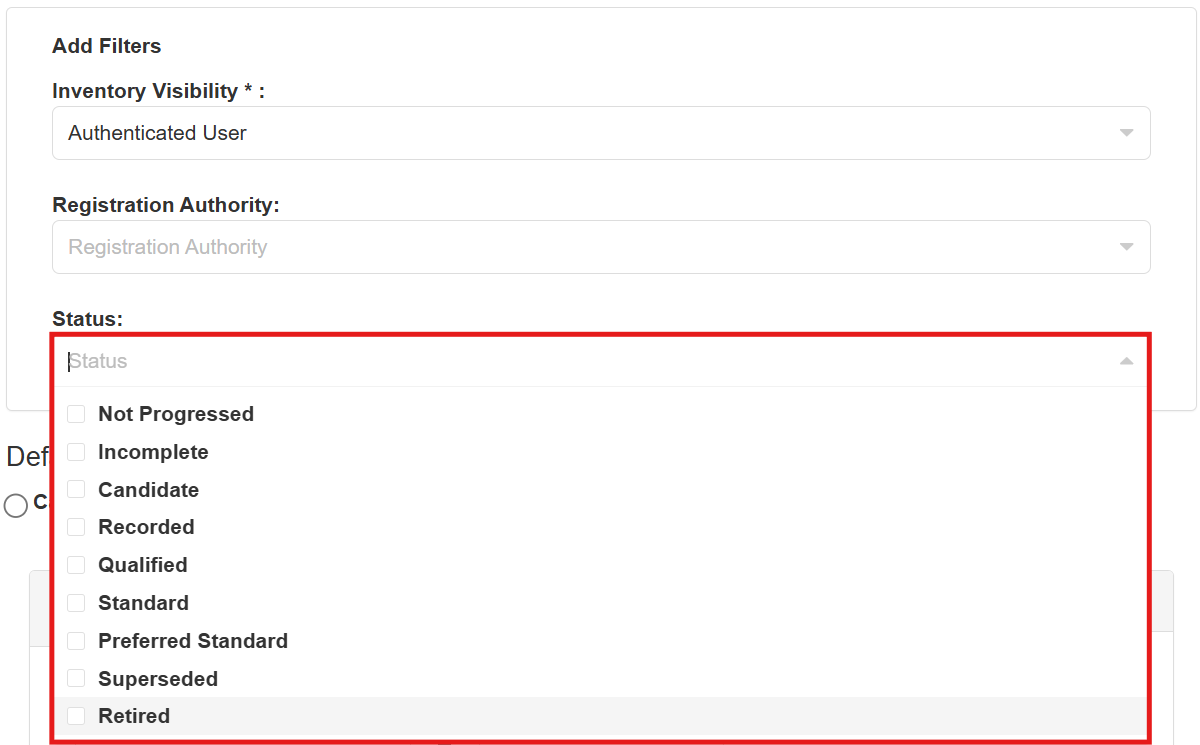
6. **If you would like this inventory to only contain data sets endorsed to a specific registration status**, select the desired status from the 'Status' dropdown.
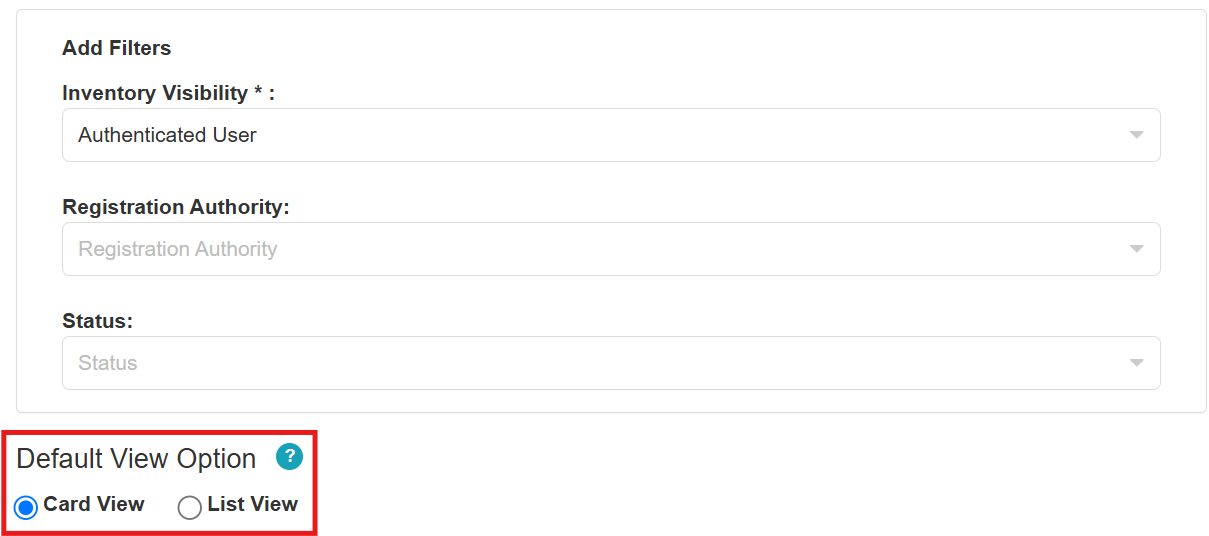
7. Select your desired default view option from the 'Default View Option' field. The editor's format will change to better reflect the default viewing mode selected.
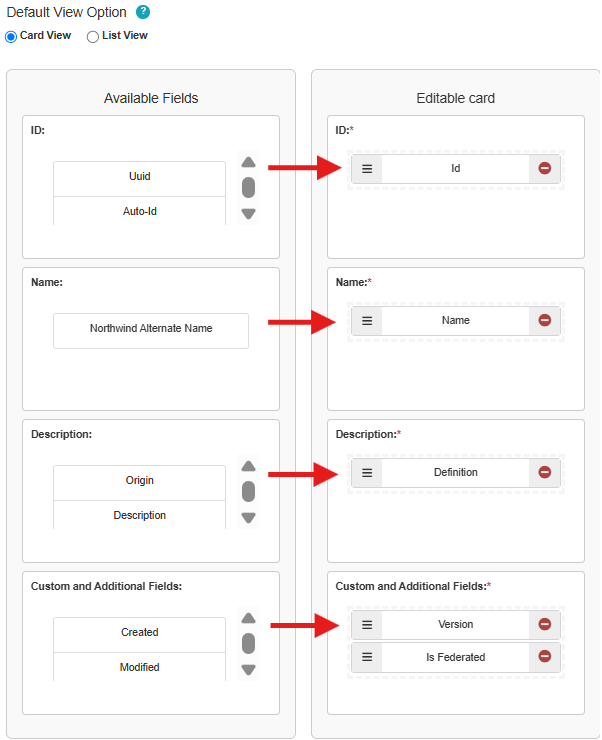
8. **If you selected 'Card View' as default**, drag one attribute from each field of the 'Available Fields' section into its neighbouring 'Editable card' field, with the exception of the 'Custom and Additional Fields' field, whose neighbour can contain as many attributes as desired. **The attributes moved into the 'Editable card' field are those that will be listed against each data set in the inventory after creation.**
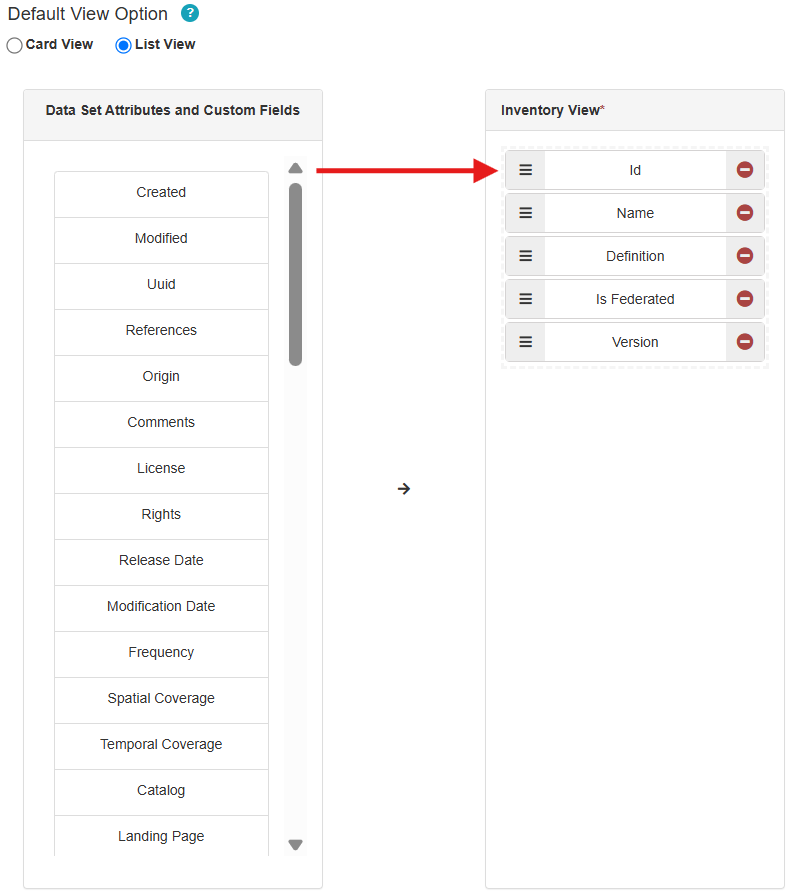
9. **If you selected 'List View' as default**, drag as many attributes as desired from the 'Data Set Attributes and Custom Fields' field into the 'Inventory View' field. **The attributes moved into the 'Inventory View' field are those that will be listed against each data set in the inventory after creation.**
11. **If you wish to use a refinement field when in card view**, ensure the 'Default View Option' (step 7) is set to 'Card View', then select the field you wish to refine card view by from the 'Current Refinement Field' dropdown.
11. Select 'Submit' once satisfied.